
Sign up and log in
Register once, then log in with a code — no password.
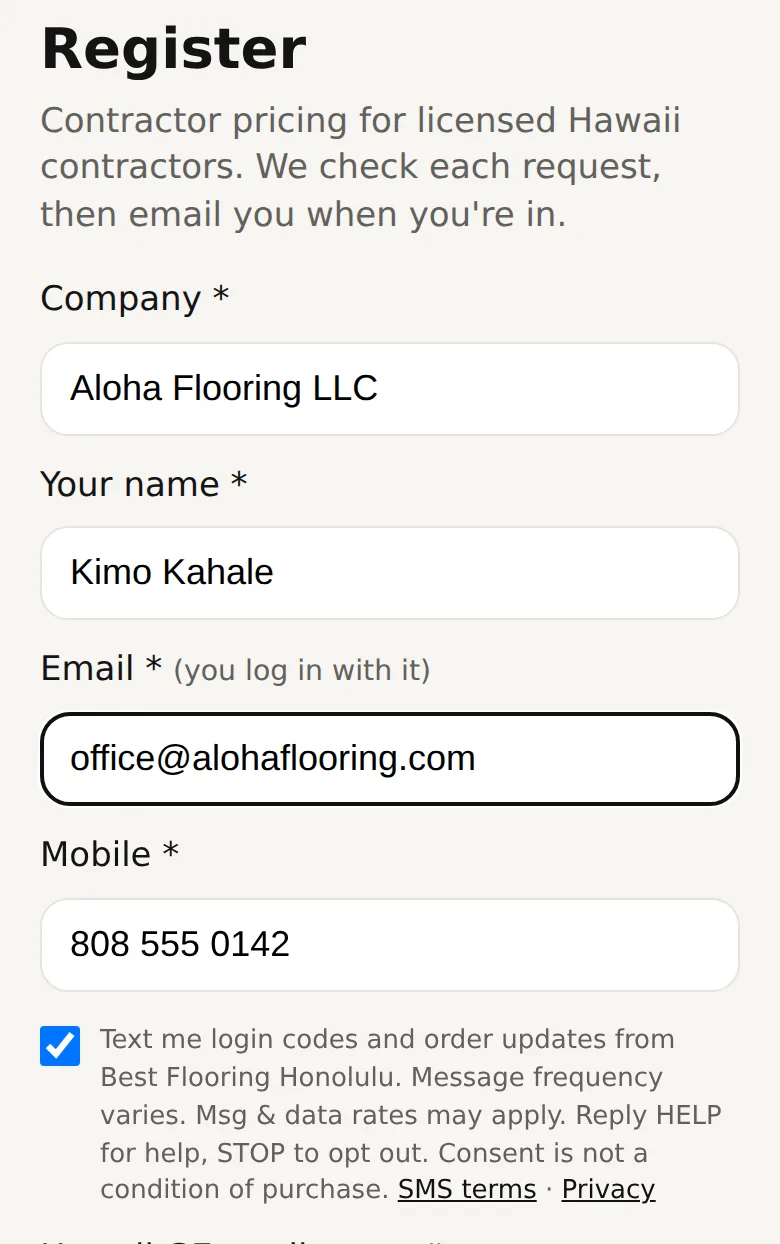
New to the portal? On the login page tap Register and fill in your company, your name, email and phone. A Hawaii GE license number helps but is not required. Tick "Text me login codes and order updates" if you want texts instead of email. We review it and email you once you are approved.
Already a Best Flooring customer? We may text or email you a personal link instead. Open it, check your company, name, email and phone, tick texts if you want them, and tap Confirm and open the portal. You are in, no form and no code. The link works once, for 14 days. The link is made for one person: if the name or email on it is not yours, do not tap Confirm. Tap "This isn't me" (the link stays unused and we are told) and ask us for your own link. No email on file with us? The link uses your mobile number: tick texts, because you log in with a code by text.
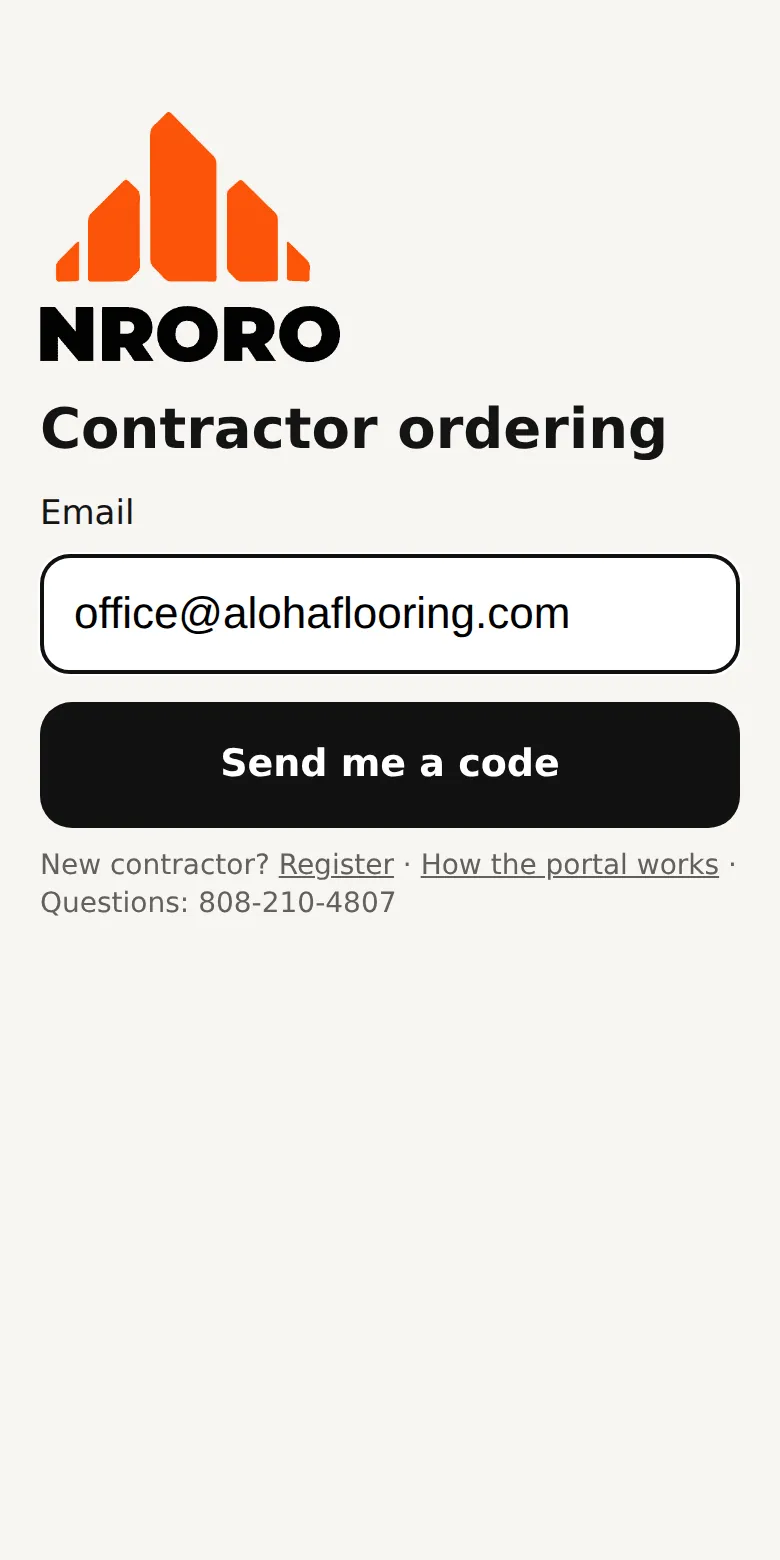
To log in, type the email we approved and tap Send me a code (capital letters don't matter). Any email we have for you works, not only the main one on your account. Turned on texts? You can type your mobile number instead and get the code by text.
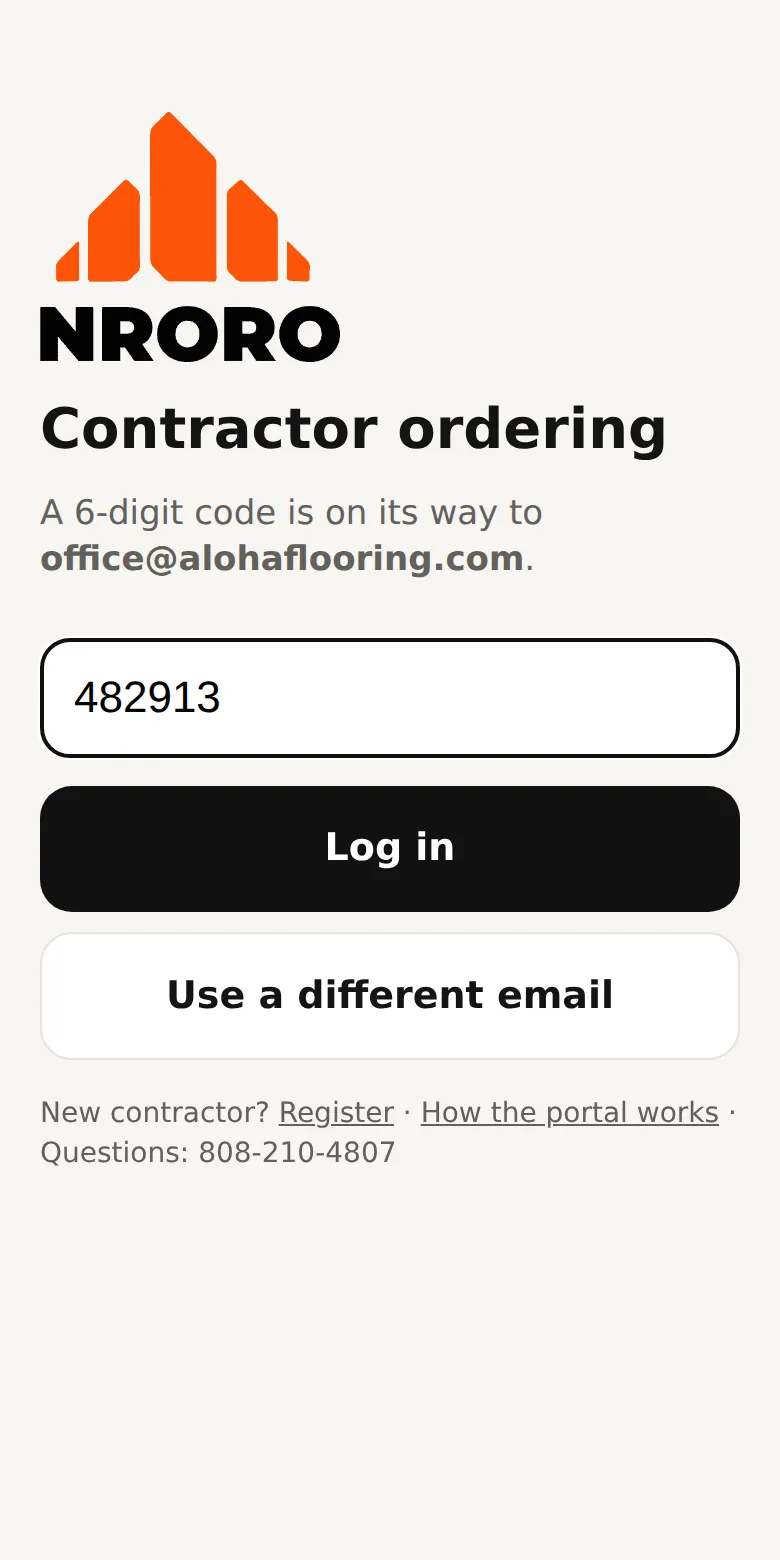
Type the 6-digit code from the email and tap Log in. You stay logged in for 180 days after the last time you use the portal (staff logins: 30 days). Didn't get the code? Check your Spam / Junk folder (Yahoo and AOL often put it there), or call 808-210-4807.
Under the top bar, a line shows whose account you are in, for example "Logged in: Evan · Waterfront Flooring" (your name and company as we have them in our books). Tap it to see the email or phone you logged in with, or to log out. Wrong name or company? Call 808-210-4807.
For Best Flooring staff: if this phone or computer was ever used by staff, the owner or Counter and is now in a customer's account, that line turns yellow: "Staff device: you're in [company]'s account." Tap Log out if you didn't mean to be there, so you never order as a customer by mistake. Tap Stay if you meant it; the yellow stays hidden until the next login or until the browser is closed. Counter keeps its own header and never shows this.
Want texts? Tap the gear icon (top right) → Settings → Texts, check the box, confirm your mobile and tap Save. Then you can also log in with your mobile number. Uncheck it there (or reply STOP to any text) to turn texts off.
Questions? Call 808-210-4807.